Showing posts with label Gmail. Show all posts

Enable Gmail Desktop Notifications 2017 [Chrome Browser]

Posted by on 12/07/2016

This post explains about How to Enable Gmail Desktop Notifications 2017. Enabling desktop notifications in Gmail would be beneficial in so many ways. You will get popup alerts of new emails, chat messages, Google plus notifications etc. right at your desktop without logging into the Gmail interface.

There are several third-party plug-ins available for this but the easiest way to enable desktop notifications on gmail is via gmail interface. Luckily this method works for Google Chrome browser but if you want to turn on gmail desktop notifications on firefox you have to rely on add-ons.

How to Enable Gmail Desktop Notifications on Chrome?

So Chrome users, follow the below steps to enable desktop notifications in gmail.

Method 1) Via Gmail Interface

  1. First login to your gmail account. If you don't have one, create it first. You need to have a working phone number for registering with gmail. If you do it through Android device then you can even create gmail account without mobile number.
  2. Provide the email & password and check on 'stay sign in' check box and hit Enter.
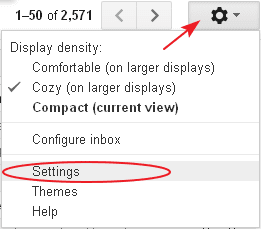
  3. Once you are on gmail interface, click on gear icon at the top-right corner and go to 'Settings'.
  4. turn-on-gmail-desktop-notifications-chrome
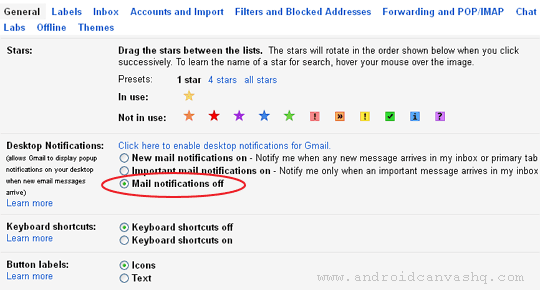
  5. Under 'General' tab, scroll down to 'Desktop Notifications' section.
  6. enable-gmail-desktop-notifications
  7. By default the third option 'Mail notifications off' would be enabled. Now choose 'New mail notifications on' option and save. This will show up the alert whenever you receive new emails in your inbox.
  8. desktop-notifications-gmail
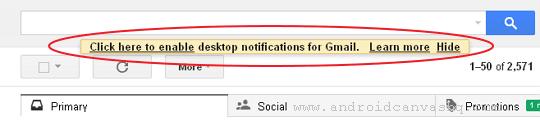
  9. If you are on chrome, then you will see a link 'Click here to enable desktop notifications for Gmail' on top of the page.
  10. gmail-settings
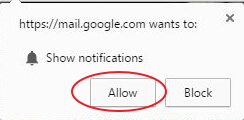
  11. Click on the link and click again on 'Allow' button on the confirmation popup.
allow-desktop-notification-chrome

Done! Just close your browser window without logging out gmail, and from now on you will get popup alerts on your desktop when you receive new mails.

To disable desktop notifications you can simply revert back to 'Mail notifications off' option at any time.

Method 2) Using Chrome Extension

Alternatively you can get the job done by installing a simple add on. Here's how to enable gmail desktop notifications via chrome extension.

  1. On Chrome extensions store, look for 'Gmail Notifier' extension.
  2. Click 'Add to Chrome' to install the plug-in and click on the blue extension icon on top menu and login to your gmail account. No need to open gmail website directly.
  3. If you have unread emails in your inbox, then the icon will turn red and shows the number of unread mails.
  4. From there you can easily navigate through the emails, go to your inbox, archive or delete emails according to your need.
  5. When there is new mail on your inbox, this will show a message alert at the bottom of the window.

Don't Miss:

That explains about enabling desktop notifications for gmail in chrome. You can try either one of the above methods but if you use the first one, make sure to use chrome browser for enabling gmail desktop notifications.
How to Create Gmail Account without Phone Number Verification 2017

Posted by on 12/01/2016

This post will show you How to Create Gmail Account without Phone Number Verification 2017. Gmail is one of the best email service providers for free in the world and gives you 15GB of storage for free at the time of sign up. At first Google maintained separate accounts for various services but later merged all of their service accounts into one and named it as Google account.

So if you create an account for Gmail, obviously you are granted access for rest of their services like YouTube, Play Store, Google Drive, Blogger and much more. However Google is very strict with spammers these days and try hard to stop people creating fake accounts.

So they demand to verify your phone number at the time of creating Gmail account. It's really hard to bypass mobile number verification and create gmail account without phone number. But there are some genuine ways to create gmail account without providing mobile number. If you want to know, then read ahead.

gmail-logo

How to Create Gmail Account without Phone Number Verification?

Here are the two ways you can use to create gmail account without mobile number.

Method 1) Create Gmail Account via Gmail Interface

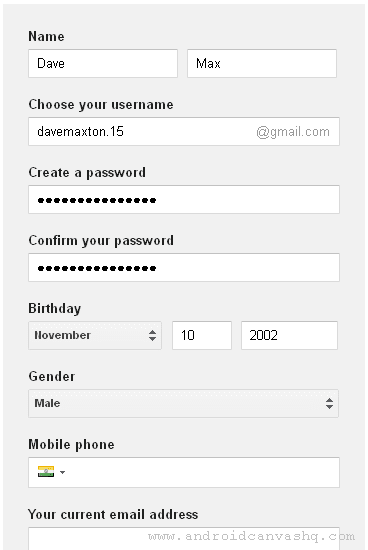
If you are an underage kid then you can easily create gmail account without phone verification. Google calculates your age based upon the 'Birthday' field and if you are less than fifteen it won't ask for your mobile phone number. But you must provide another working email address as recovery email for this method to work.

create-gmail-account-without-phone-number-verification
  1. To create Gmail account, clear all your browsing history first and visit https://www.google.com/gmail/ » 'Create account'.
  2. Now fill in all the required details like name, username (email-id), password, confirm password, birthday and gender.
  3. Skip 'Mobile phone' box but enter 'Your current email address', accept terms & conditions and hit 'Enter'.
  4. Done! Now you have successfully created gmail account without phone verification.

Method 2) Create Gmail Account via Android Phone/Tablet

There is another way you can bypass mobile phone verification while creating Gmail account. For this you'll need to create Google account from your android device.

  1. On your Android Mobile or Tablet, open 'Settings' » 'Accounts' » 'Add Account'.
  2. On the next page select 'Google' and then 'Create a new account'.
  3. Now enter first name, last name, username (email address), and password and recovery email-id in the form.
  4. Just skip the mobile number and tap 'Next'. If Google ask for payment details, choose 'Remind me later' and tap on 'Next'.
  5. That's it! You have got a gmail account without mobile number verification.

Likely you can easily create gmail account without phone number verification with the above explained methods. If you want to try second method but don't have android device, then download and install Bluestacks software on your PC/Laptop and go through the process.

Enable Gmail Desktop Notifications in Firefox

Posted by on 11/22/2016

This post will show you how to enable gmail desktop notifications in firefox browser. People completely rely on emails these days and Gmail has been their ever popular choice. But who has time to login and check inbox for new mails every so often on a busy workday?

Don't worry! Now you can get popup notifications on your desktop whenever you receive new emails. And that too without opening your Gmail account at all. Convenient isn't it?

Enabling Gmail Notifications on Desktop:

Gmail provides desktop notifications for their Chrome browser by default and you can enable this option via Gmail settings. But if you are using Firefox as your default browser then your chances are slim with this method.

But Firefox users don't have to worry because there are some good plugins available out there. Installing such extension will allow you to enable Gmail notifications in Firefox and you'd be able to get email alerts without logging in to your Gmail account.

Enable Gmail Desktop Notifications in Firefox:

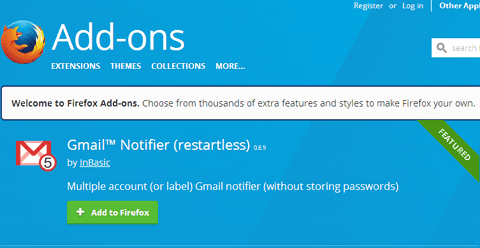
Trusting third-party plug-in makes you uncomfortable these days and there's a pretty good reason for that. But the plug-in 'Gmail Notifier' is quite popular among firefox users and seemed to won people's trust which itself speaks for its credibility.

enable-gmail-desktop-notifications-in-firefox

You can use this extension to enable gmail notifications on desktop. To install this plugin, visit here, download and install the plugin.

Alternatively you can directly install it from firefox browser itself.

Open Firefox, go to Tools » Add-ons » Extensions. And type 'gmail notifier' on the search box and hit enter. This will bring up all the addons related your search. Look for 'Gmail Notifier' and click 'Install' and follow the procedure.

Key Features of Gmail Notifier:

  • Supports multiple Gmail accounts & labels
  • No need to provide your account credentials
  • Highly customizable browser add-on
  • Consumes low-bandwidth
  • Available for Firefox, Opera, Chrome & Safari browsers

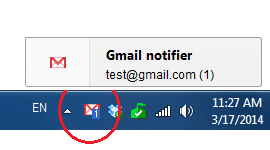
After installing the plugin, to enable desktop notification for gmail you have to just login to your gmail account through gmail interface. Now the extension will automatically grabs your account details and start showing email alerts on the taskbar notification area like this,

enable-gmail-desktop-notifications-firefox

Must Read: How to Minimize Chrome to System Tray

Likewise you can enable gmail desktop notifications in firefox. There are no security complaints with this method so you can rest and let it do the work.