Showing posts with label MS Paint. Show all posts

How to Invert Colors in MS Paint (Windows 7/8/10)

Posted by on 12/21/2016

Here's how to invert colors in paint. That is, inverting colors of an image using MS Paint app. The method explained in this tutorial will work for Windows 7/8/10 platform. As we all know MS Paint is the image editing tool available for free in Windows and using it you can perform so many basic image editing tasks.

With Paint tool, you can easily invert colors of a picture. Which means lighter tones turns to darker and darker tones turns to lighter. This effect is called as 'Negative Image' in traditional photography.

Technically speaking images are formed with pixels using RGB color pattern. And inverting an image would invert the color of red, green and blue colors at every pixel level. You can invert colors of an entire image or a part of the image using Paint.

Below let's see how to invert colors of an image in Paint on Windows platform.
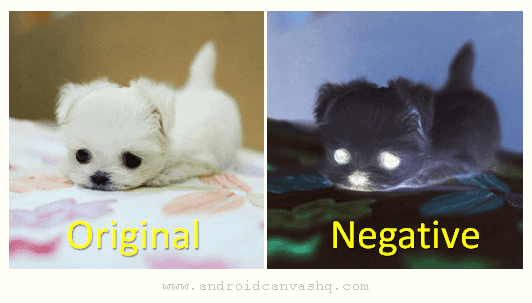
invert-colors-in-paint-windows

How to Invert Colors in Paint:

  1. To invert colors of an image, open the image you want to invert colors in Paint tool.
  2. If you want to invert colors of the whole picture then select the entire image.
  3. To do so, go to 'Home' tab at the top and click on 'Select' button and then choose 'Select all' option.
  4. Else use the keyboard shortcut 'Ctrl+A' to select the entire picture.
  5. Now right click anywhere on the picture and select 'Invert color' option from the context menu.
  6. The invert color filter will be applied immediately and the image colors will be inverted.
  7. For grey scale image - that is, black and white picture, the effect would have no effect. Since red, green and blue colors would be same at every pixel in such images.
  8. To invert color for a portion of the image, use 'Rectangular selection' or 'Free-form selection' tool to choose a part. You can look for these options under 'Select' button.
  9. After choosing the area, right-click anywhere inside selection and apply 'Invert color' filter.

Done! This will only invert colors on selected portion of an image.

Read: How to Mirror an Image in MS Paint

That explains about inverting colors in paint program. You can also apply mirror effect to the image by using rotate/flip option in paint.

How to Mirror an Image in Paint

Posted by on 12/19/2016

This post will show you how to mirror an image in paint on Windows 7/8/10. Microsoft Paint is a graphics utility tool that ships with Windows OS. It has been included in all Windows versions such as Windows 7/8/10 and even on the earlier Vista or XP.

For a free tool, MS Paint is relatively powerful and allows you to perform basic image editing operations like picture resizing, rotate, flip, adding text and much more. Here let's see about mirroring an image using MS Paint.

If you think you need advanced tools like Photoshop to create mirror effect then scratch it. You don't need paid tools or technical skills to mirror an image. You can easily mirror an image in MS Paint. Here let me show you how to do it.

mirror-an-image-in-paint

How to Mirror an Image in Paint:

  1. To mirror image in paint, launch MS Paint App and go to the top ribbon and click 'Open' to load the image you want to mirror.
  2. Now Windows opens the picture folder on your computer. Choose the image you want and click on 'Open' button. It will load the image in the Paint editor.
  3. On 'Home' tab click on 'Rotate' icon and then on 'Flip Horizontal'option.
  4. Here's where the magic happens. The image will be reversed forming a mirror reflection of the original one.
  5. Now you have mirrored an image in paint within seconds. Save the image with a different name if you want to keep the original image.
  6. Alternatively you can right-click on the image and select 'Flip Horizontal' option from the context-menu. The effect will be same.

For Windows Vista/XP Users,

If you are using Windows Vista or XP then Paint interface would be little different. To achieve mirror effect,

Open the image you want to mirror on Paint, and go to 'Image' » 'Flip/Rotate' and choose 'Flip Horizontal' option and click 'OK'.

That's explains about mirroring an image in MS Paint. I hope you find this tutorial useful. Stay tuned for more :)